Beami integrates easily with your existing Webflow forms; there’s no need to replace anything. Using webform forwarding, you can automatically send every form submission directly into Beami, where it gets tracked, organised, and followed up with.
Webform forwarding lets Beami receive form submissions (like enquiries or bookings) via a special forwarding email address, unique to your account, so when someone fills out a form on your site, their details are automatically passed to Beami.
How does this help you?
✅ A lead is instantly created in your Box
✅ Automatic tagging and tracking
✅ Instant follow-up using your automations (like email or WhatsApp)
What You’ll Need
A live Webflow Form embedded on your website
Access to your Squarespace dashboard
Your unique Beami forwarding email address
This email forwarding address is how Webflow forms knows where to send form submissions to.
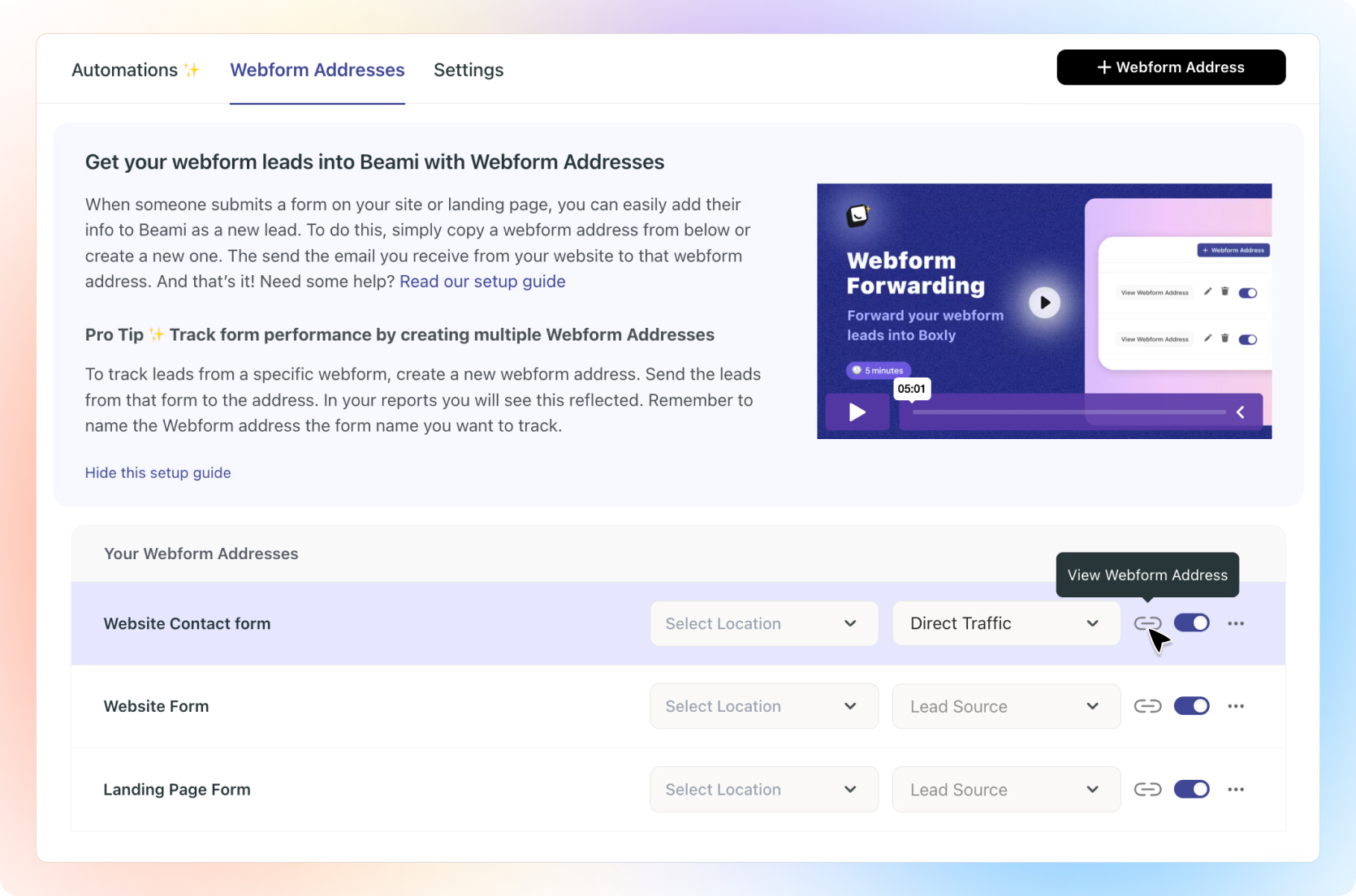
✅ Go to your Channels > Webforms > Webform Addresses to find your webform forwarding addresses.
✅ Select on the webform you want to to forward directly into Beami and click on the “View Webform Address” icon like below (Next to the toggle button).
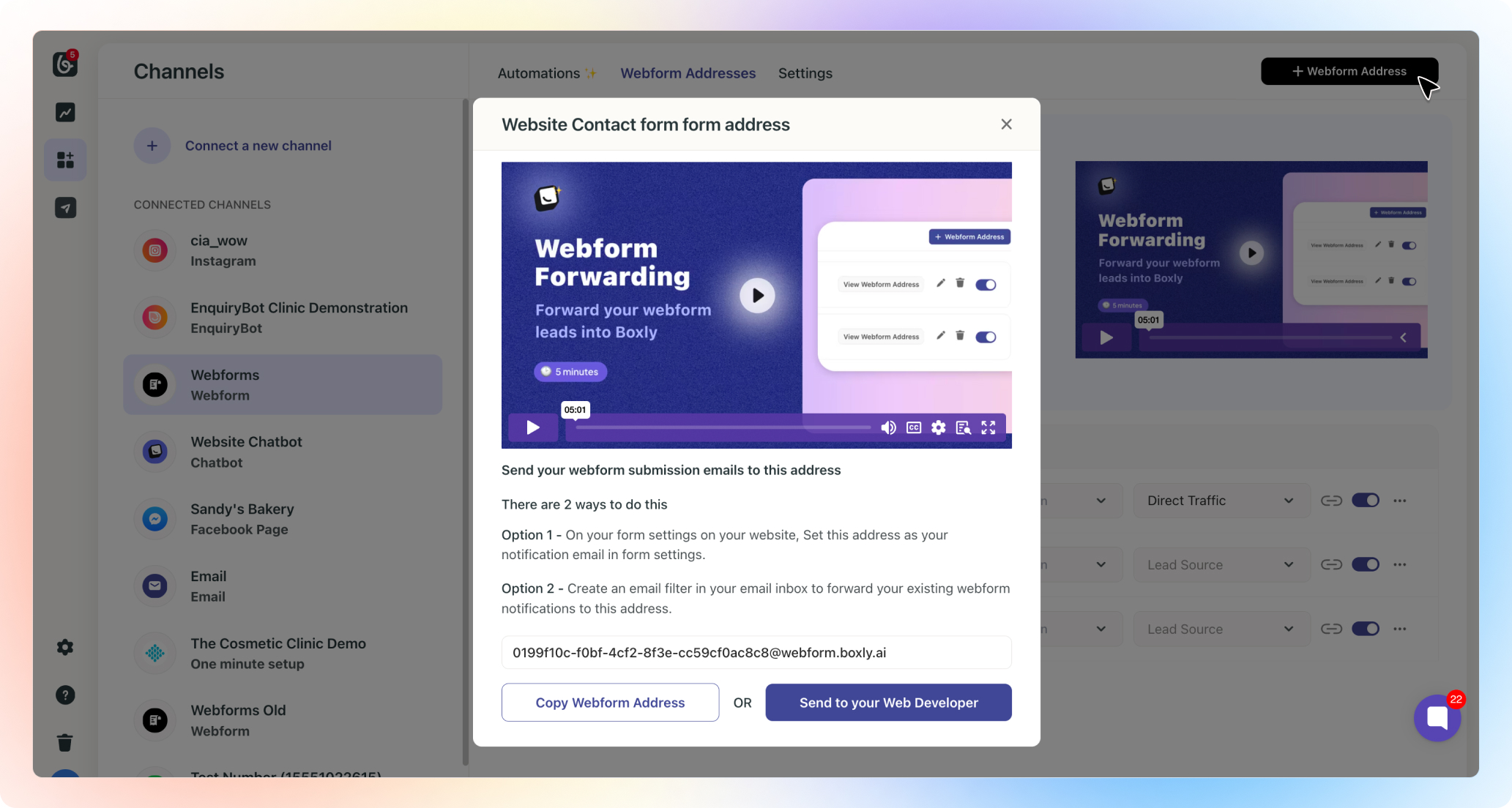
✅ Click, “Copy Webform Address”, if you have IT support, then click “Send to your web developer”.
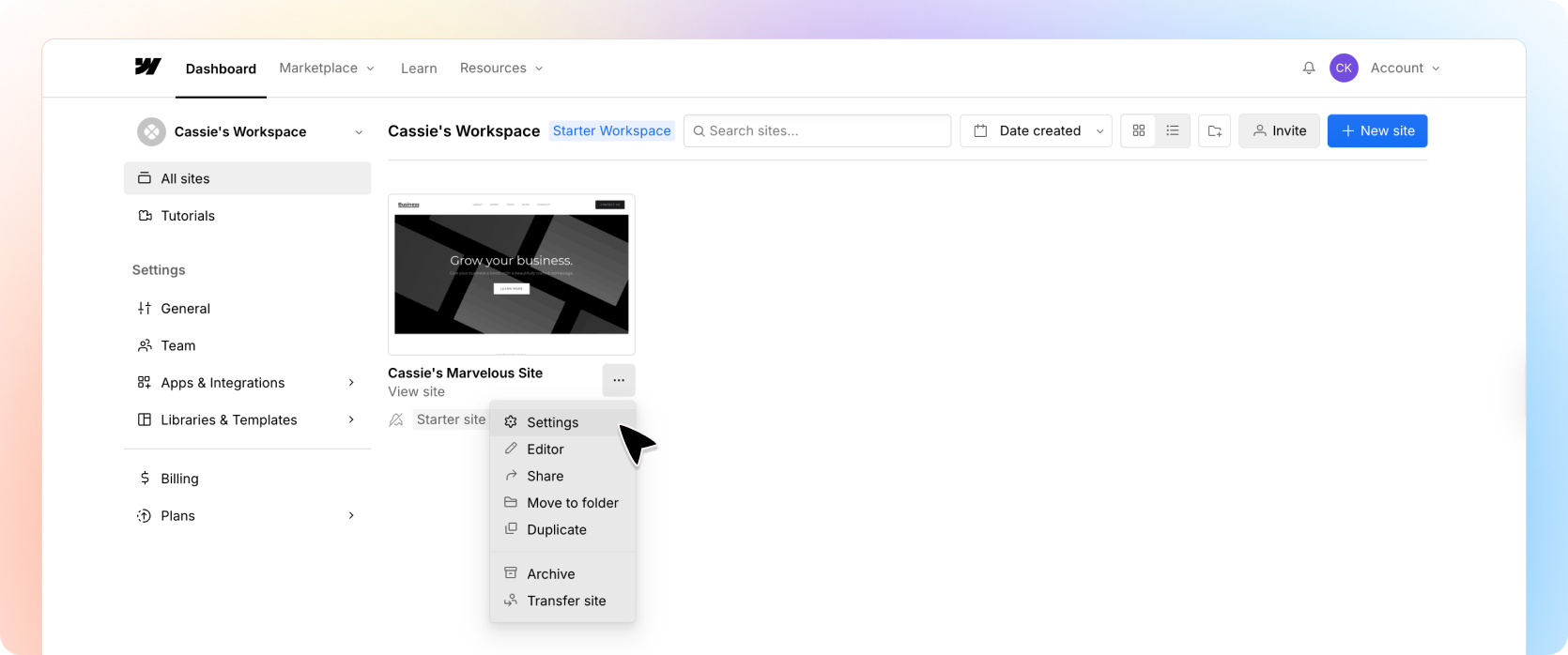
✅ Login to webflow and go to your Dashboard.
To add the Beami webform address to all forms on your site, use the below method.
Click on the three-dots menu on the site you want to forward emails from
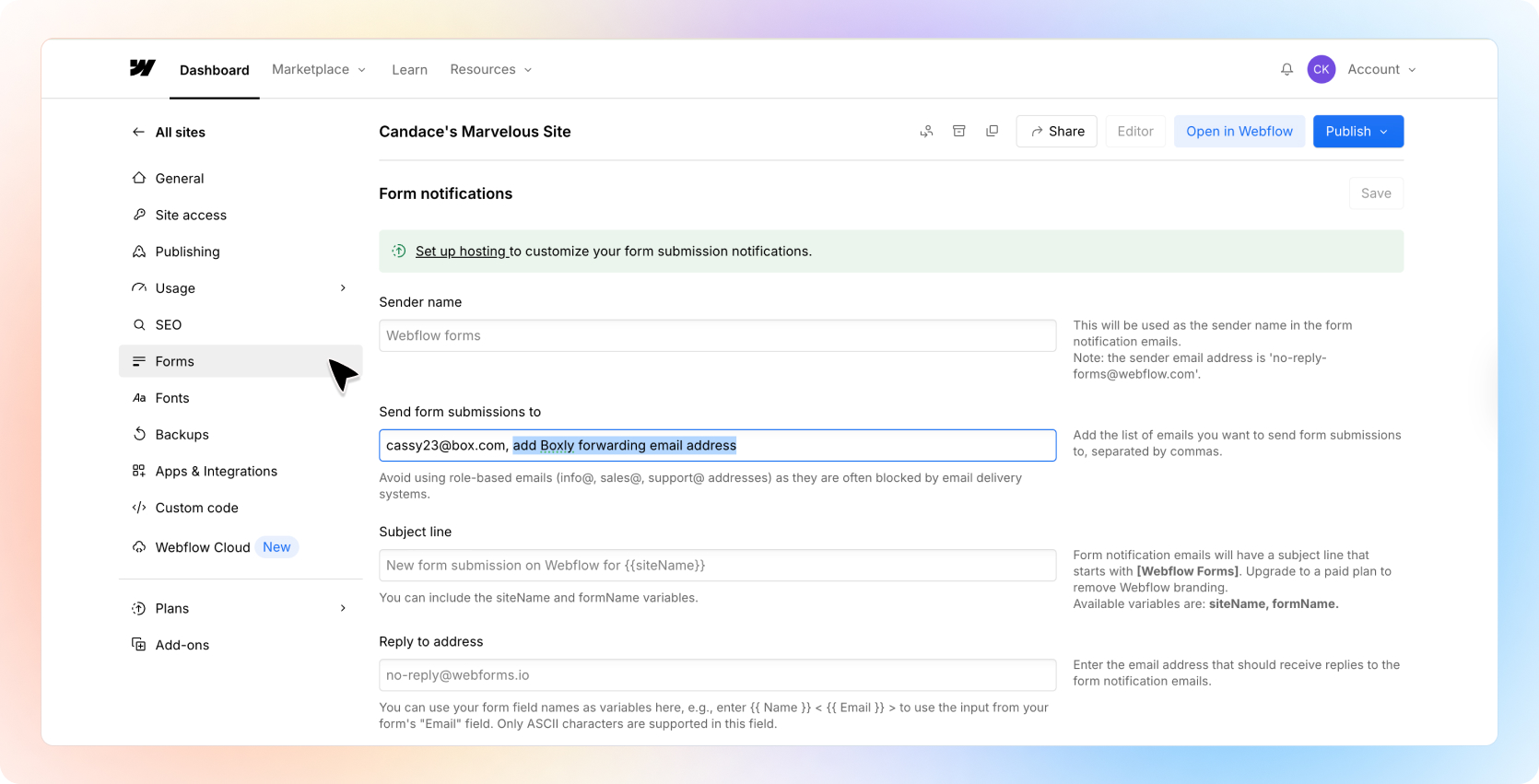
Click on “Settings”, then → Forms
In the “Send form submissions to” field add your Beami webform address you copied from Beami. Add a comma between addresses if you want to send form submissions to more than one place.
If you want to add the Beami webform address to one single submission, use the method below.
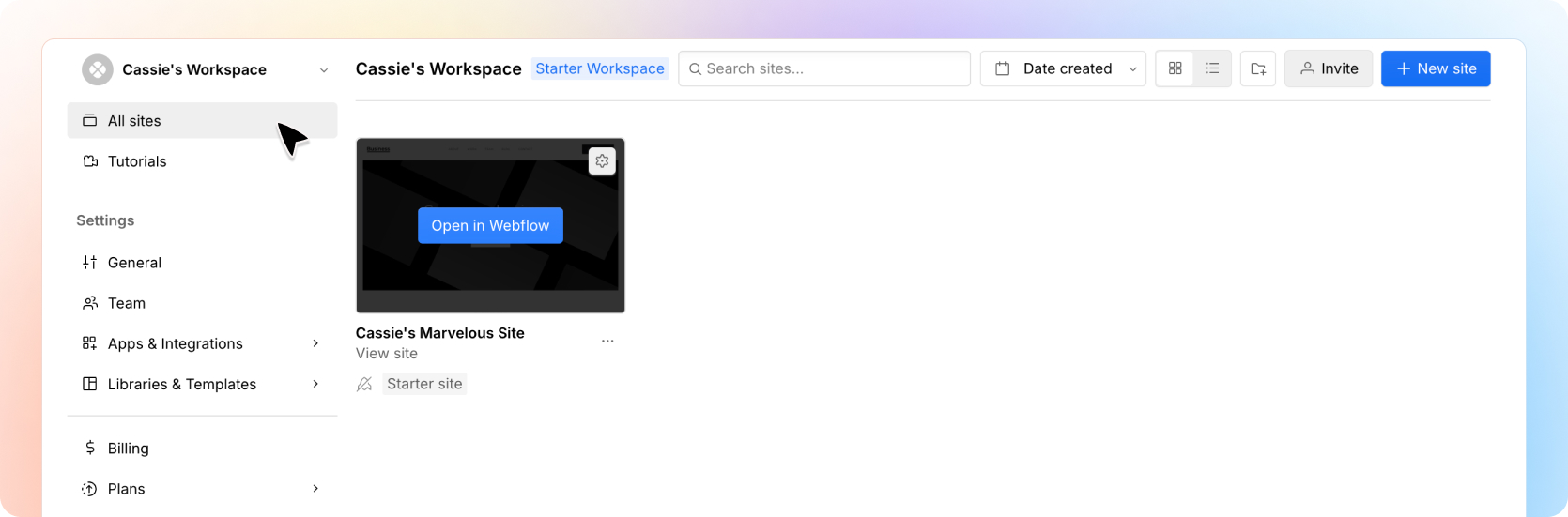
Click on the “Open in Webflow” button on your site
Click on the Form you want to add the Beami webform address too.
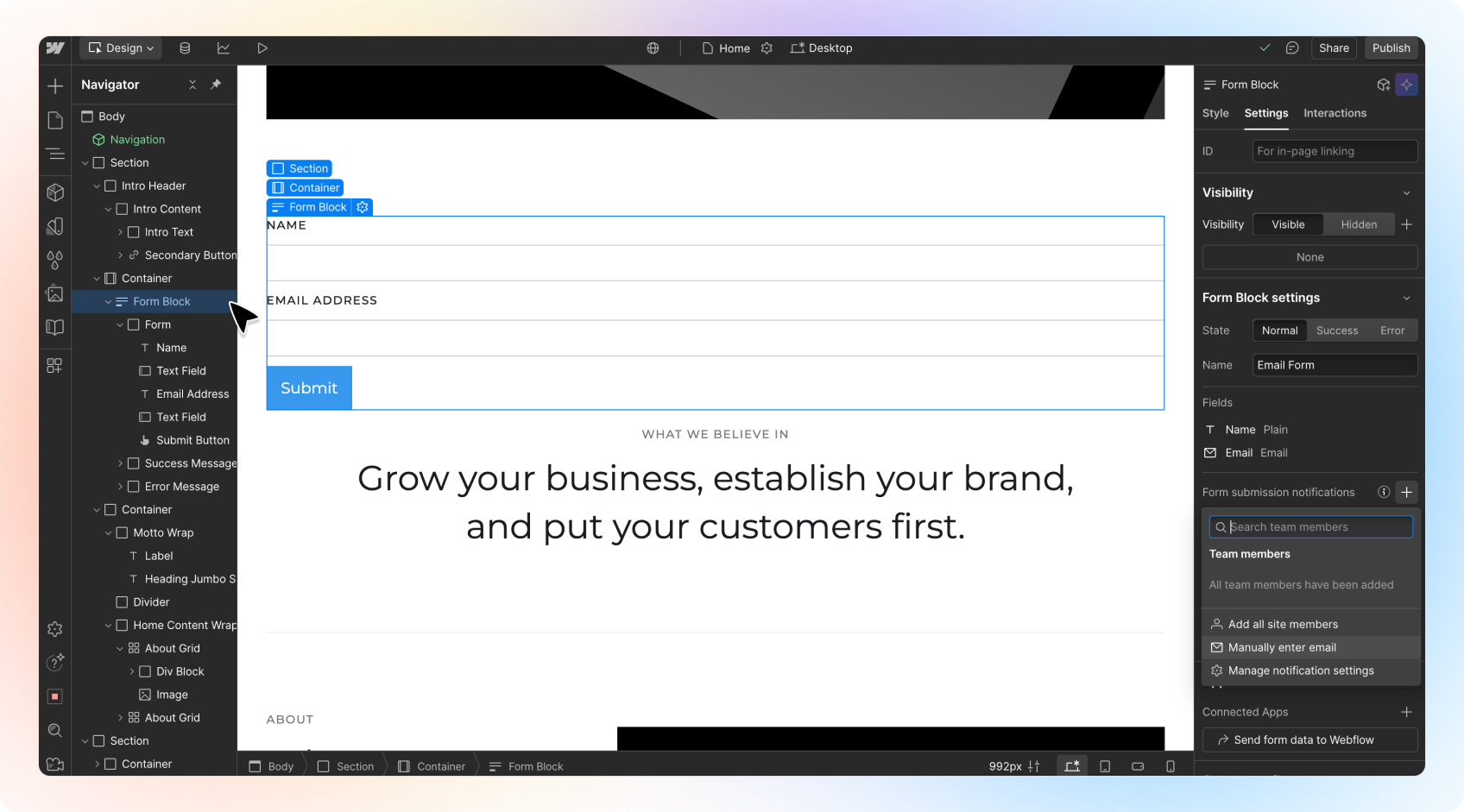
Under Form Submission Notifications Settings on the right, click the + symbol and either add an existing email address if you’ve added it in form settings or click on “Manually enter email” and add your Beami webform address.
Keep your existing notification email if you still want to receive form submissions to your inbox.
Save your changes.
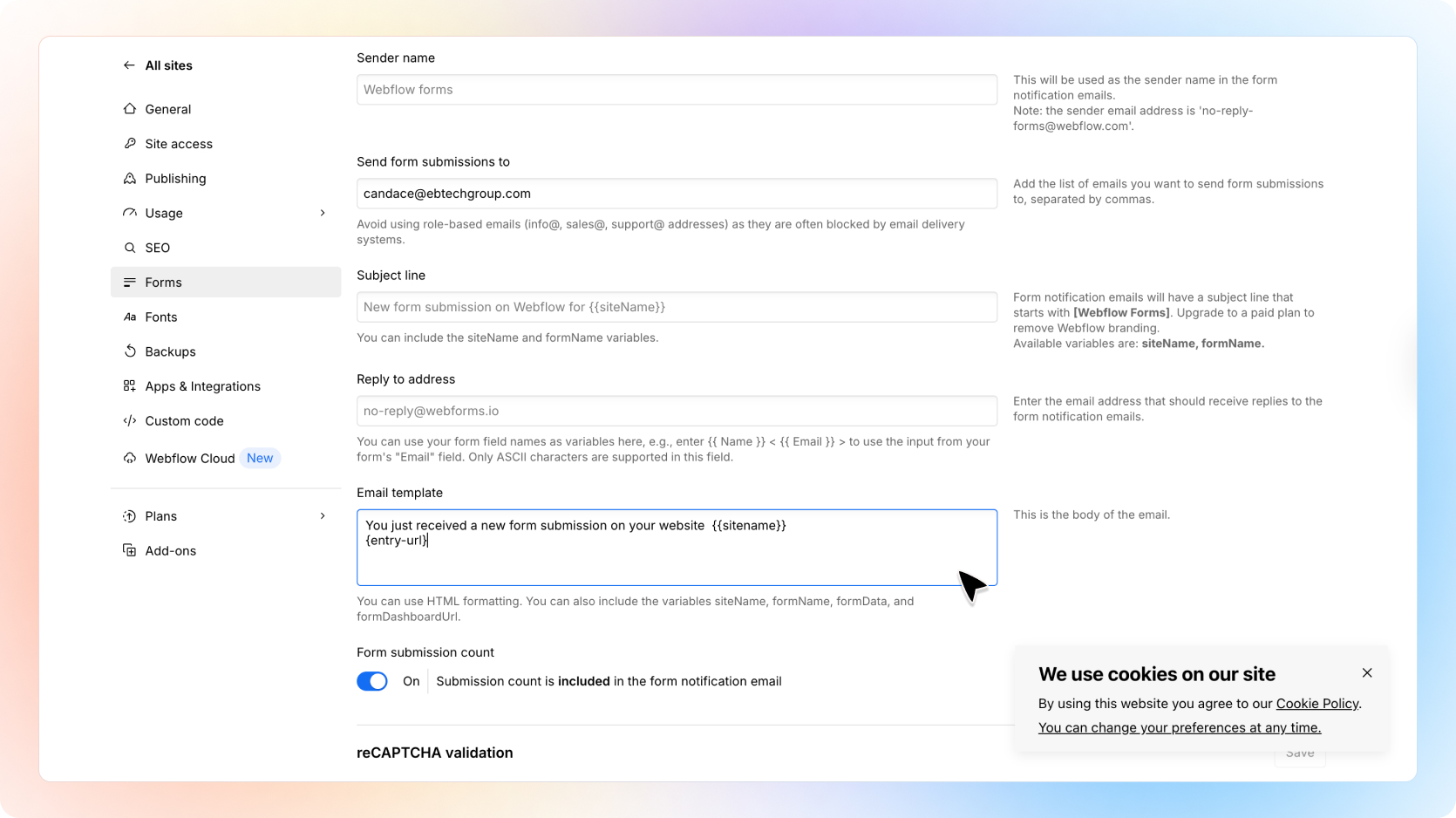
Open the Form Settings
Go to Email Templates
add {entry-url}
Submit a test enquiry.
In Beami, check if the lead shows up within a minute.

✨ Things to Keep in Mind
You can create one Beami forwarding address per form if needed
The clearer your field labels (like Name, Email, Phone), the better Beami’s AI can sort them
Beami reads the message body, not the attachments, so make sure details are included clearly in the message body (like the entry url).
✨ You’re Done!
Your Webflow forms is now working hand-in-hand with Beami, no double entry, no leads falling through the cracks. Just smooth, smart automation.
Still not sure?
We’re here for you. If your test doesn’t show up or something looks off, just ask Beami’s support team at [email protected].