Easily Connect Your Social Channels to Beami
Managing multiple accounts across different practices or agencies?
With Beami, you can seamlessly connect Facebook, Instagram, and Facebook Lead Ads to separate Beami accounts for streamlined lead management! 😎
Whether you're an Admin with multiple businesses or an Agency which manages multiple client accounts, this will enable you to connect the various social channels to the corresponding Beami accounts.
✨ Follow the step-by-step guide below!
If you manage multiple business pages on Facebook and Instagram or run Facebook Lead Ads for different practices, you can connect each page to the corresponding Beami account.
Example Scenario:
Agency A manages three practices:
ABC Practice
XYZ Practice
123 Practice
Each of these practices has its own Beami account. As the admin, you can link the specific Facebook and Instagram pages of each practice to their corresponding Beami accounts.
Example Scenario: Connecting ABC Practice Pages to the ABC Practice Beami Account
Log in to the ABC Practice Beami account.
Go to Channels and click on "Facebook/Instagram or Facebook Lead Ads".
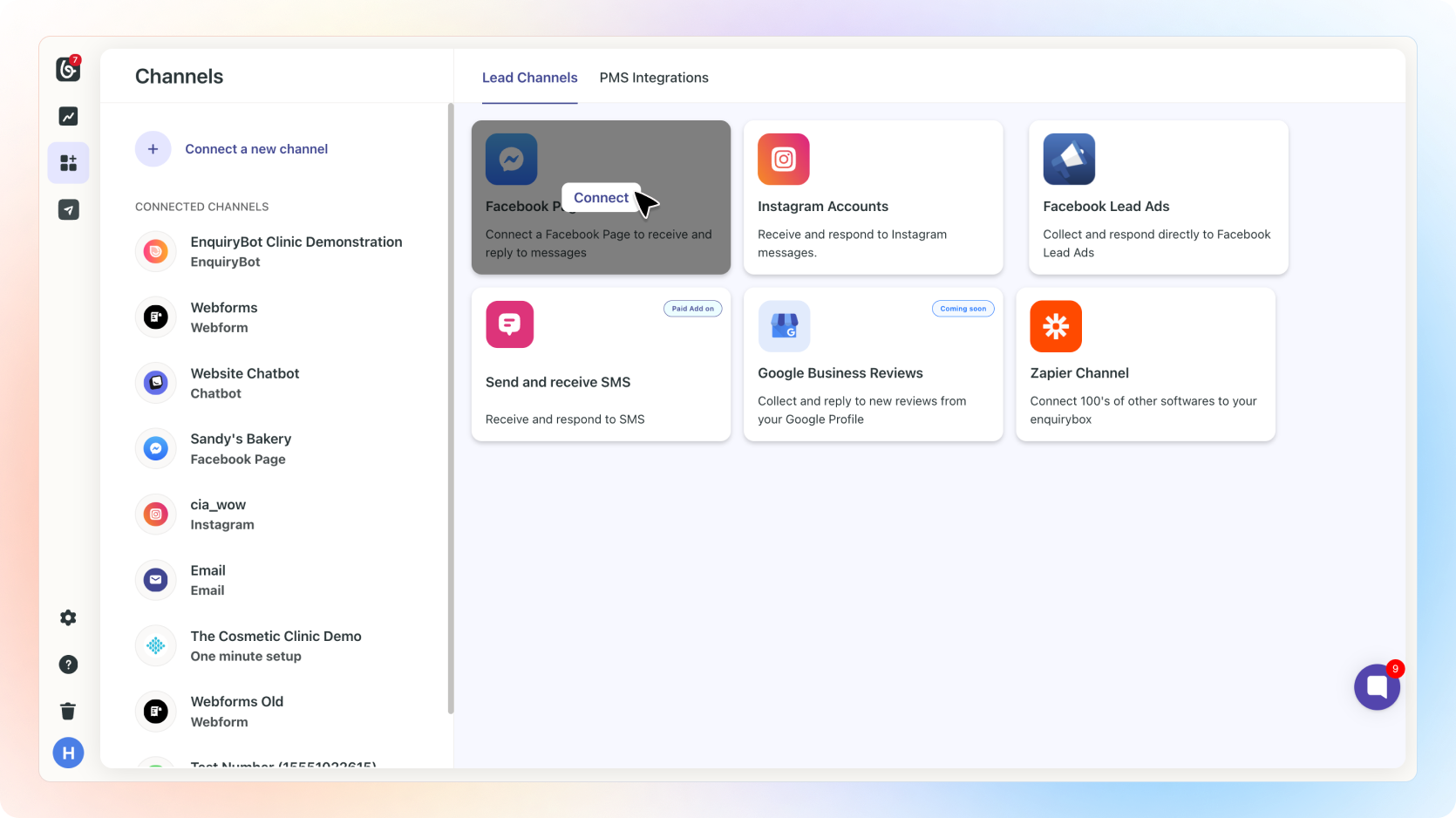
A Meta OAuth screen will appear. Click on "Edit previous settings".
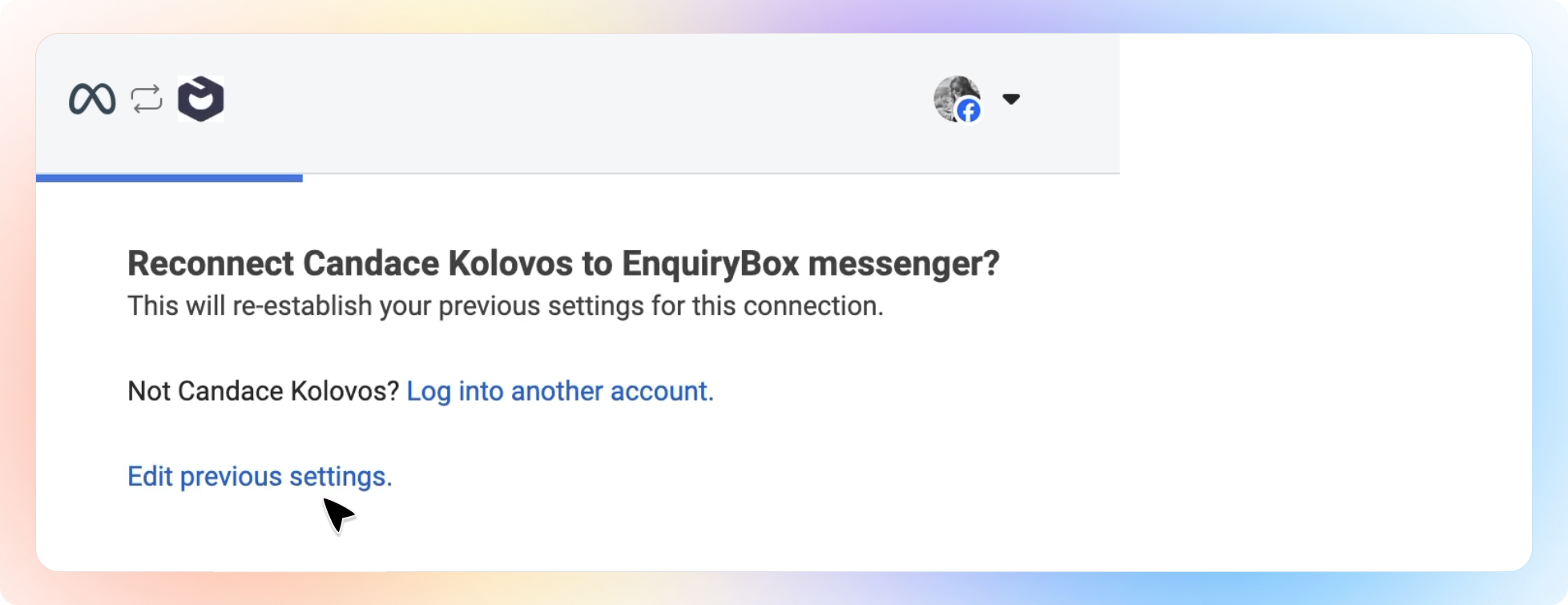
Select the business 'ABC Practice' and click "Next".
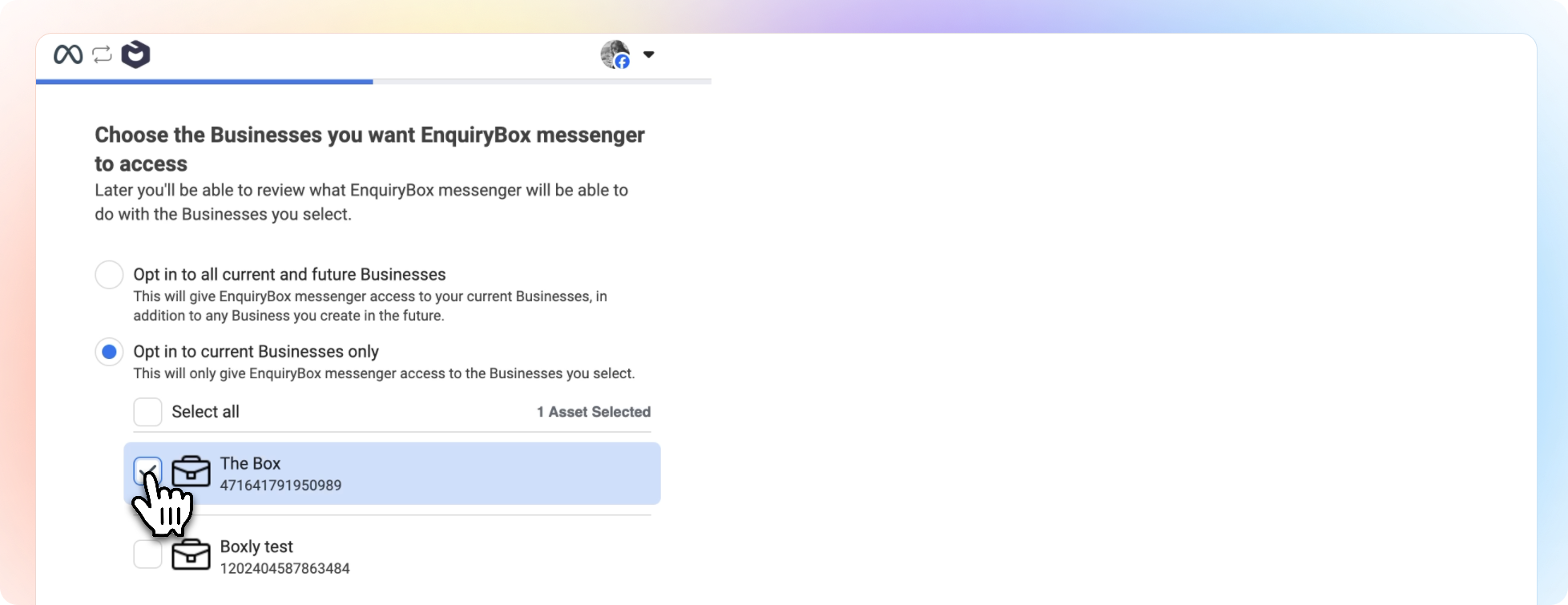
Choose the pages associated with ABC Practice.
Click "Continue".
Success! The ABC Practice pages are now linked to the ABC Practice Beami account.
Log in to the XYZ Practice Beami account.
Go to Channels and click on Facebook/Instagram or Facebook Lead Ads.
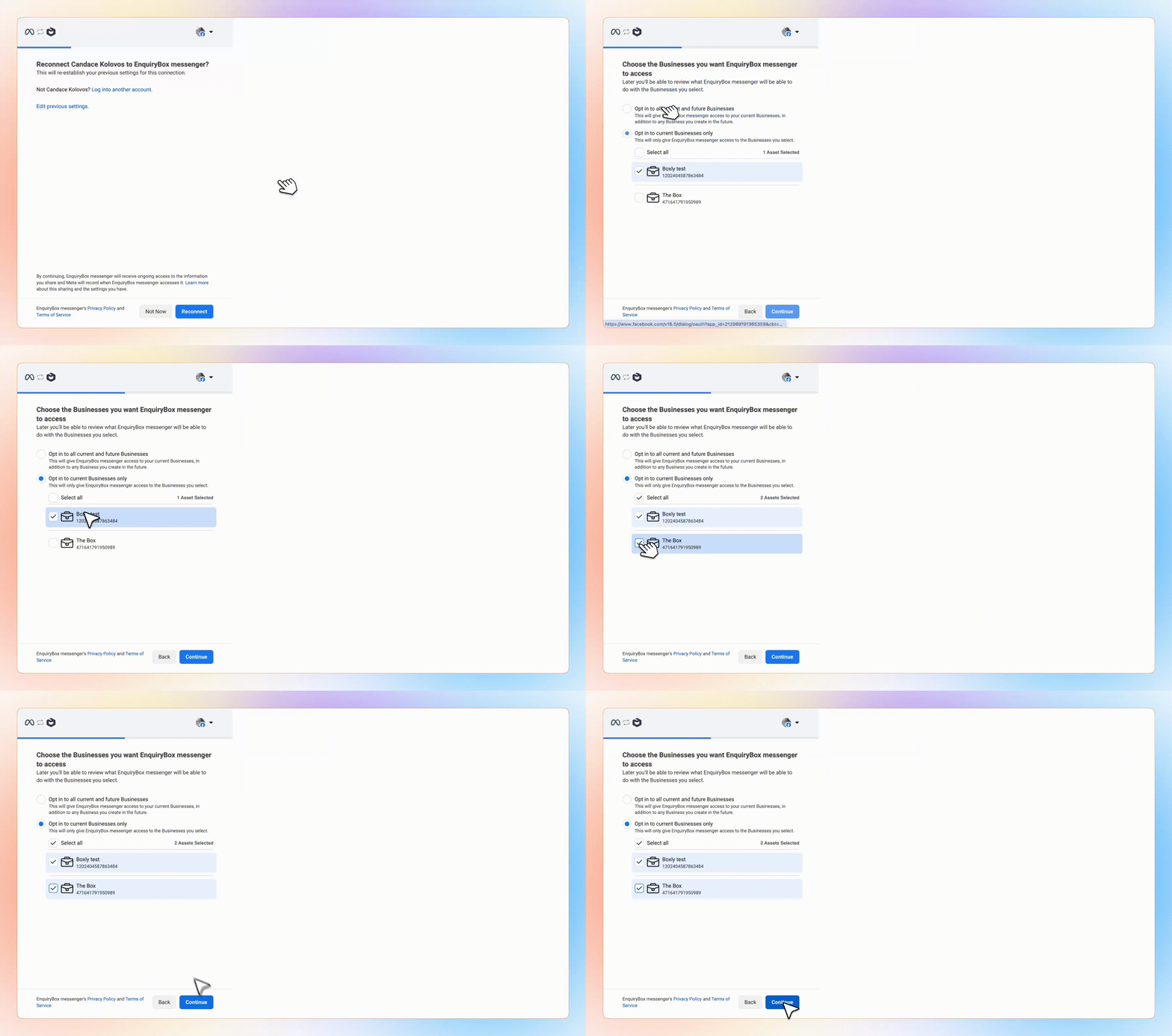
A Meta OAuth screen will appear. Click on Edit Previous Settings.
ABC Practice may already be selected. Do not unselect ABC Practice Pages – they are already connected to the ABC Practice Beami account.
Select the business XYZ Practice and the associated pages.
Click "Continue".
If any pages are already linked to another account, you’ll see a pop-up message:
"The following pages are already linked to another Beami account: {page names}. To connect them to this account, disconnect them from the other account first, then reconnect. If you need further assistance, feel free to reach out to our support team."
Success! The XYZ Practice pages are now linked to the XYZ Practice Beami account.
Always click "Edit Previous Settings" when connecting pages.
Do not unselect pages that are already connected to another Beami account. Beami will not link these pages to a new account unless explicitly disconnected first.
For any issues or questions, contact the Beami support team for help at [email protected]
✨ By following this guide, you can easily manage multiple social media pages and lead ads across multiple practices, ensuring your leads are routed to the correct Beami accounts!